
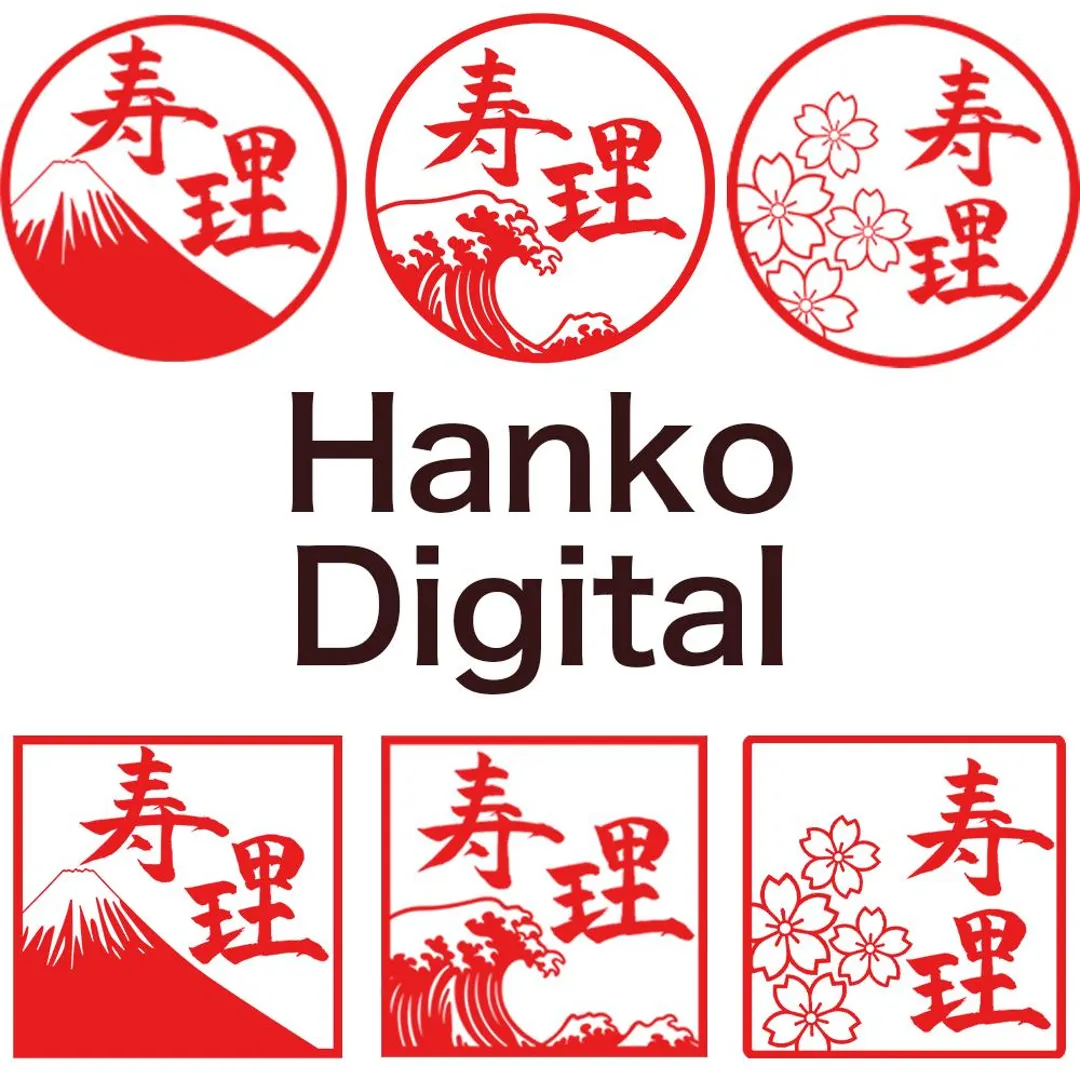
Remote work changed a lot of things about how people in Japan handle documentation. Physical desks, shared printers, and office stamp pads became inconvenient almost overnight for a significant portion of the workforce. What did not change was the underlying expectation in many Japanese professional contexts that documents carry a seal. That tension produced something practical: the digital hanko.
If you are working remotely in Japan — or working with Japanese clients, employers, or partners from anywhere in the world — a digital hanko is the tool that bridges the gap between Japan’s stamp culture and a paperless workflow. It is not a workaround. In the right contexts, it is the expected solution.
This guide explains what a digital hanko actually is, when it makes sense to use one versus a physical seal, how to apply it cleanly to PDFs and other documents, and what mistakes to avoid. Whether you are a freelancer invoicing a Japanese client or a remote employee managing HR paperwork from abroad, the workflow here is straightforward once you understand the basics.
What a digital hanko is
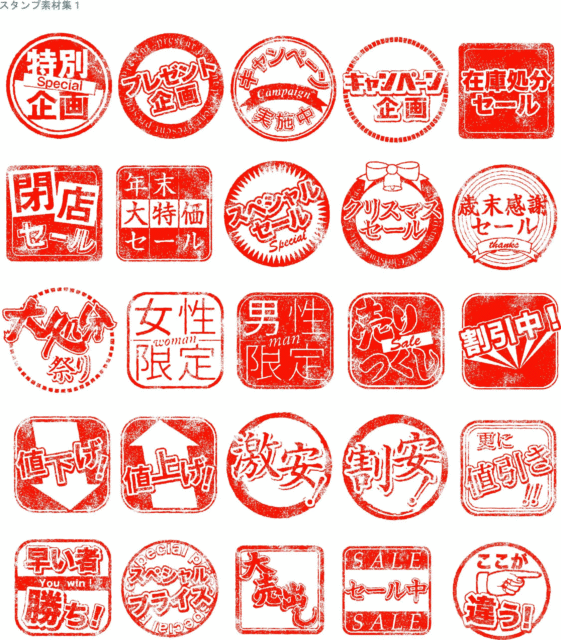
A digital hanko is a digital image file — most commonly a PNG with a transparent background — designed to replicate the appearance of a traditional Japanese seal impression. It typically shows your name in kanji, katakana, hiragana, or Roman letters, rendered inside a circle or square border, in the red ink color associated with hanko use in Japan.
It is not the same as an electronic signature in the legal sense. An electronic signature, as recognized under Japan’s Electronic Signatures Act, involves cryptographic verification tied to the signer’s identity. A digital hanko is a visual element — it looks like a stamp, it functions like one in document workflows, but it does not carry the same cryptographic authentication that a legally certified e-signature does.
That distinction matters and does not matter, depending on what you are doing. For internal company documents, invoice approvals, PDF submissions to clients, and many HR forms, the visual confirmation of your seal is what the workflow requires. Nobody is running cryptographic verification on the hanko impression in the corner of an expense form. For legally significant contracts — property transactions, formal corporate agreements — you want to understand whether a digital hanko meets the actual requirements of that specific document.
For the majority of remote work documentation that foreigners in Japan encounter, a digital hanko does exactly what it needs to do.
When it’s useful vs physical
The honest answer is that digital and physical hanko serve different situations, and having both covers you entirely. But if you are deciding where to start or trying to understand which one fits your current workflow, the distinction is practical.
A digital hanko is the better choice when:
- You are working remotely and cannot physically stamp documents before returning them.
- Your documents exist only as PDFs or digital files — printing, stamping, and rescanning adds friction without adding value.
- You are working with clients or employers who use document management platforms, shared drives, or email-based approval chains.
- You are submitting invoices, timesheets, or routine HR forms that will never be printed on the receiving end.
- You work across time zones and need to turn documents around quickly.
A physical hanko remains necessary when:
- The institution explicitly requires a physical ink impression — many banks, traditional landlords, and some local government offices still do.
- You are signing a formal legal document such as a lease, a property contract, or a registered company document.
- You are attending an in-person appointment where stamping happens on the spot.
- The document will be physically filed and the receiving party inspects originals.
A micro-scenario: Kenji, a Japanese-American designer working remotely for a Tokyo agency, receives contracts and approval forms as PDFs through the agency’s document system. His clients never see a printed version of anything. For his entire workflow, a digital hanko applied directly in Acrobat covers every document he touches. The one exception is his annual lease renewal, which his landlord still handles in person with a physical stamp. He keeps a mitomein for that day and uses his digital hanko for everything else.
How to apply to PDFs (workflow)
This is the practical core of the guide. The workflow is simple once it is set up. The setup is a one-time process that takes about ten minutes.
What you need:
- Your digital hanko as a PNG file with a transparent background
- A PDF to stamp
- A tool to insert the image into the PDF
Option 1: Adobe Acrobat (most reliable)
Open your PDF in Acrobat. Go to Tools and select Edit PDF. Use the Add Image function to insert your PNG file. Position it over the signature or stamp field. Save as PDF. This preserves the transparency of your PNG so the stamp appears cleanly over the document without a white box around it. Acrobat Reader (the free version) does not support image insertion — you need Acrobat Standard or Pro, or use the web-based Adobe Acrobat tools which allow limited free use.
Option 2: Preview on macOS (fast and free)
Open your PDF in Preview. Open the Markup toolbar (the pencil icon). Select the image insertion tool and choose your PNG file. Drag it to the correct position and resize as needed. Save. Preview handles transparency correctly and this is the fastest method for Mac users. It works well for simple single-page documents and is the go-to for many freelancers.
Option 3: PDF annotation apps (mobile)
Apps such as PDF Expert, GoodNotes, or Xodo allow you to insert image stamps on mobile. This is useful when you are reviewing and approving documents on a tablet or phone. Import your PNG as a custom stamp within the app (most support this through a stamp or sticker library), then apply it to the relevant field. The result is indistinguishable from the desktop method.
Option 4: Google Docs / Word intermediate step
If your document is not yet a PDF, insert the PNG directly into the document before exporting to PDF. In Google Docs, use Insert > Image > Upload and place it over the signature field. Export as PDF. In Microsoft Word, Insert > Pictures > This Device, then position and export. For documents you create and control, this is often cleaner than stamping a finished PDF.
Checklist for a clean stamp application:
- PNG file has a transparent background (not white)
- Stamp is sized to fit naturally in the field — typically 15–25mm equivalent at standard print resolution
- Stamp is positioned over the correct field, not overlapping critical text
- Saved file is a PDF (not an image export)
- Final file name is clear and professional before sending
Best file formats (PNG)
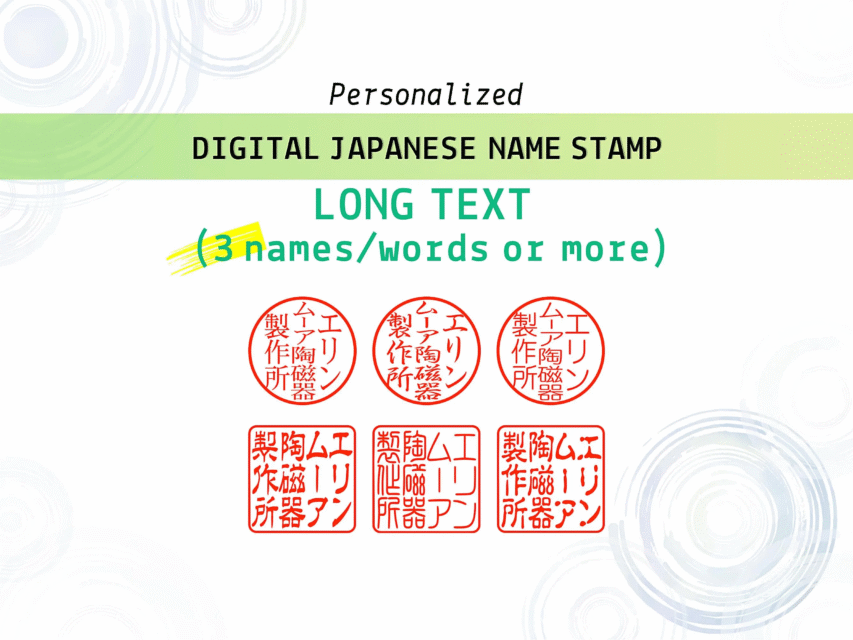
PNG is the correct format for a digital hanko, and it is worth understanding why, because using the wrong format creates the most common visual problem people encounter: the white box.
A PNG file supports transparency through an alpha channel. This means the background of the file — everything that is not the stamp image itself — can be fully transparent. When you place a transparent PNG over a PDF, only the stamp appears. The document underneath shows through cleanly everywhere else.
A JPEG file does not support transparency. JPEG uses lossy compression and always has a solid background. If you place a JPEG hanko over a document, you get a white or off-white rectangle behind your stamp. This looks unprofessional and, in some cases, obscures text on the document underneath.
A few specific format considerations:
Resolution matters. A digital hanko intended for on-screen documents can be 300px wide and look fine. A hanko that will be printed — even occasionally — should be at least 600px wide, ideally 1000px or higher, at the intended print size. A low-resolution stamp looks pixelated when printed, which undermines the professional appearance the hanko is meant to convey.
File size is rarely an issue. A properly made PNG hanko is a small file — usually between 30KB and 200KB. There is no meaningful reason to compress it into a lower-quality format.
Color. Traditional hanko use red ink. For digital use, this convention is generally maintained. The specific red varies — some are a deeper vermillion, others a brighter crimson — but any clean red reads as a hanko to a Japanese recipient. Black is also used in some formal contexts, particularly in internal corporate documents. Avoid other colors unless you have a specific reason.
Saving your master file. Keep your original hanko file in its highest-resolution PNG form somewhere you will not lose it. A cloud storage folder is sensible. If you ever need to resize it, start from the master. Enlarging a small PNG introduces quality loss.
Do’s and don’ts
Do:
- Use your digital hanko on documents where a visual stamp confirmation is expected, including invoices, expense forms, internal approval documents, and routine contracts sent via email or document platforms.
- Keep your PNG file in a consistent location — a dedicated folder named clearly — so you can find it quickly when documents need to be returned fast.
- Check the document requirements before assuming a digital hanko is sufficient. When in doubt, ask the receiving party whether a physical stamp is needed.
- Match the stamp size to the field. A stamp crammed into a small signature box or floating at twice the intended size looks careless.
- Name your stamped PDFs clearly before sending. A file called “contract_stamped_yourname.pdf” is professional. “Document(3)_final_v2.pdf” is not.
Don’t:
- Use a digital hanko as a substitute for a legally required physical seal without confirming the recipient accepts it. This is the most consequential mistake in this list.
- Apply your stamp on top of critical document text, dates, or other signature fields.
- Share your PNG hanko file casually. Because it requires no physical presence to use, a digital hanko can technically be applied by anyone who has the file. Treat it with the same care as a physical seal.
- Use a JPEG version. As covered above, the white box it creates is a clear sign of an improperly prepared digital hanko.
- Resize your stamp file using the stamping tool and then save the resized version as your new master. Always resize from the original.
A micro-scenario: Priya, an Indian UX consultant working remotely for a Osaka-based firm, received a request to return a signed PDF by end of day. She had a digital hanko ready but her PNG had been saved at low resolution from a cropped screenshot of a preview image. The stamp appeared blurry when printed on the client’s end. She had to request a one-day extension to get a properly made file. A clean, high-resolution master file from the start avoids this entirely.
If you are exploring remote jobs in Japan, ComfysCareer can help you find roles — then use a digital hanko for smoother documentation once you land the position.
FAQ
Is a digital hanko legally valid in Japan? As a visual element, a digital hanko does not carry independent legal weight in the way a registered physical seal does. However, for most routine business documents — invoices, internal approvals, HR forms — it fulfills the practical function expected. For documents where legal enforceability matters, confirm whether a certified electronic signature or physical seal is required.
Can I make my own digital hanko? Yes, technically. You can create a circular image with your name in a Japanese font using design tools like Canva, Illustrator, or even Photoshop. The challenge is producing something that looks professional and reads clearly in the font and layout conventions that Japanese recipients expect. A properly made digital hanko from a specialist service is faster and produces a more consistent result.
What name should my digital hanko display? The same conventions as a physical hanko apply. Katakana is the most conventional choice for foreign names. Some people use their family name only; others use both given and family name. Check what format you use on your other professional and contractual documents and keep it consistent.
Can I use a digital hanko on documents sent through platforms like DocuSign or Adobe Sign? Partially. You can insert a digital hanko image as part of your signature block within these platforms, but the electronic signature itself is the legally relevant element in that context. The digital hanko becomes a visual layer alongside the certified e-signature, which is a reasonable approach for Japanese business contacts who expect to see one.
How do I apply a digital hanko on a phone? PDF annotation apps handle this well. Import your PNG as a custom stamp in an app such as PDF Expert or Xodo, then tap to apply it to the relevant field. The result is clean and quick once the stamp is saved in the app’s library.
Will a digital hanko work for bank or government documents? Generally no. Banks and government offices that require a physical hanko mean a physical ink impression on paper. A digital hanko is not a substitute in those contexts. For everything else in a remote work context, it covers the ground reliably.
Next steps

Setting up a digital hanko workflow takes about ten minutes once you have the right file. The part that matters is starting with a high-quality PNG — transparent background, clear rendering, correct size — so that every document you stamp looks clean and professional. HankoHub produces digital hanko files optimized for PDF workflows, with your name rendered in the format and style that works for Japanese professional contexts. Order once, use it across every document you send.